Showing posts with label tools. Show all posts

Friday, November 3, 2017

The evolution of digital safety to digital leadership

Over the past few years, we have witnessed the shift from teaching about digital or online safety to teaching digital citizenship.

When teaching about online safety, we talked about WHAT NOT TO DO to keep ourselves safe online:
Source Mini Matisse
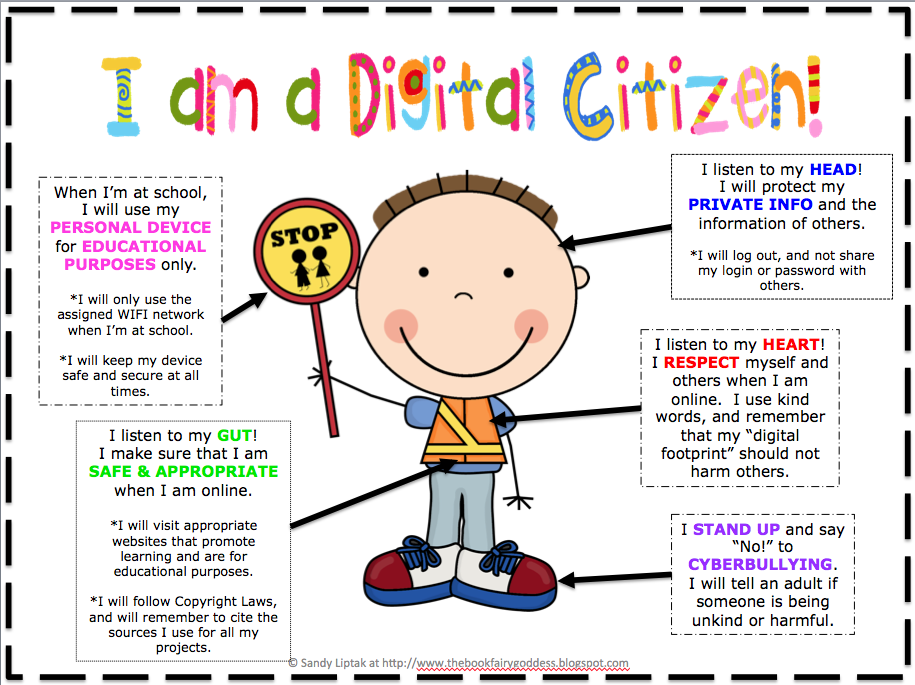
When talking about digital citizenship, we shifted the the conversation to a more positive emphasis on WHAT WE WILL DO to be responsible and appropriate contributors to the online world:
Source Lessons By Sandy
Even more recently, thanks to the work of educators like George CourosKristen Mattson and others, the conversation has evolved to talk about fostering and encouraging digital leadership as outlined in this video produced by the International Society for Technology in Education (ISTE).


This doesn't mean that digital safety and digital citizenship are no longer important. Quite the opposite in fact.  The evolution of these concepts have just laid the ground work for this current conversation about "empowering proactive digital learners".
Source: ISTE

In this era of "fake news", cyberbullying and increasing concern and uncertainty about the impact of social networks and technology on the lives of our students, the need to lay a solid foundation of "respect - educate - protect" that Dr. Mike Ribble has advocated for over so many years needs to create digital citizens needs has never been more important. But we need to go one step further. We put that ever evolving understanding of citizenship into action - to make a difference.  

Our students need to understand that their digital presence can play a positive role in making our world a better place and that their ideas and talents can be used to create a positive change in their communities. But what does this look like in practice? How can we foster this idea to build digital leaders in our classrooms?

I would love to hear what you think about this topic. As educators, we need to figure out together what this looks like in our classrooms. How do we ensure our students are learning the skills they need to be able to live, learn and work in an ever changing digital world?

Please contribute your views to this Flipgrid. Having a growing collection of voices discussing this topic will be valuable in moving this discussion forward.

Thursday, October 26, 2017

My Personal Learning Philosophy

As part of the requirements for an online course I am taking in instructional design, I had to create an introductory video that utilized a Web 2.0 tool to help explore my learning philosophy. I don't get to play around in GoAnimate as much as I would like so I picked that tool to create my video.

I have included it in this post in case you are interested in watching it.


Wednesday, October 25, 2017

Digital Citizenship in Blended Learning

While attending the Building Student Engagement in Distance and Blended Learning Conference this week in North Battleford, I had the pleasure of presenting "Digital Citizenship in Blended Learning" to a large group of teachers. The presentation was very well received and contains a number of resources for teachers looking to incorporate digital citizenship into their blended learning environments.

I have shared it here in case you find it helpful:


One tool that I used throughout the presentation is called Mentimeter.  This is a great interactive tool that can be used for formative assessment throughout a lesson or engage an audience during a presentation. It is very customizable and user friendly. I also really like how you can export your results in different formats, making it multi-purpose.  Here is the collective word cloud that we built to define digital citizenship:


Tuesday, April 28, 2015

IT Summit 2015 Ignite Session

Rules of the presentation: Each speaker gets 15 slides shown for 15 seconds each on an automatic rotation for a total of five minutes of fame to share the newest, latest and greatest technology in this fast paced event.

Presenters: Vicki Davis, Jim Swan, Dean Shareski, Carlene Walter

Ideas shared during the session:

Dean's message: Creativity

  • Bad selfies and silly pictures = creativity come from being silly
  • We live in a remix culture where we play with images to make powerful products
  • Creativity can make us create powerful things such as posting where earthquakes happen on Twitter.
  • Teachers work with scraps that others would throw out and then work with students to create something beautiful
  • "Adults need to have fun so that children will want to grow up."
Carlene's message: Digital Fluency - our students need a toolkit to help them work and play
Jim's Message: 10 year report card on technology 
  • piloting social media
  • teachers are important and they just use the tech to teach
  • why isn't every day Friday?
  • How do we personalize learning?
  • Using tech to re-watch a lesson
  • Students want to direct their own learning
  • The new tech alphabet
  • Learing needs to be = personalized, learner-driven, applied, cost-effective
Vicky's Message: Choose Your Habits Change Your Life
  • 40% don't change habit choose them
  • done manage your time you spend it how ill you spend your habits?
  • most people don't know what their ideal work looks like
  • create launch routines - 30-30 app to help make important things happen routinely
  • miracle morning pavers - start my day right
  • mud puddle principle - can share your habits
  • habit stacking - add a habit that you already have
  • 20 second rule - more likely to do it 
  • keep calms and make your bed
  • every 90 minutes you need to move
  • what you do during your break - take a mental break
  • set alarms - a personal attitude check twice a day
  • exercise - every little bit helps
  • joy journal - you will be happier if you write down every day something you are joyful about
  • signature strength - you will be happier if you use it every day
  • reading/learning habit - read in the field that you want to be the best at
  • get rid of gossip - makes you poor and makes you worse
  • watch less TV
  • you don't accidentally climb Mt. Everest - you choose to

Saturday, March 14, 2015

2015 RCSSD EdCamp Smackdown & App Smash


During today's RCSSD EdCamp, Katia Hildebrant, Kelly Christopherson, and I closed the morning's learning and sharing by presenting an "App Smash Smackdown".  Here's a list of apps we shared:

Joanna's Apps:

IFTTT (IF This Then That):

DIY (for Kids)
  • A safe place for kids to learn and share in a monitored social network that allows for parent and educator access. Earn badges for skills mastered.
  • Platforms: iOS, Web
  • Link to find it: DIY Website
  • Classroom Connections: DIY for Kids - Do Challenges, Earn Skills
ChatterPix and ChatterPix Kids
  • Students can record themselves speaking using pictures of their choice.  Make an inanimate object have a voice or make your pet talk.  Might help reluctant talkers to express themselves through the talking picture.
  • Platforms: iOS
  • Link to find it: ChatterPix Website
  • Classroom Connection: Kids Create Talking Pictures with CatterPix Kids

Katia's Apps:

Touchcast:
  • This app allows you to record a short video and then layer interactive widgets over it to integrate live socialmedia streams, photos, maps, and other multimedia.  The person watching the video can interact with the widgets while still remaining in the video.
  • Platforms: iOS, Windows
  • Link to find it: TouchCast Website
  • Ideas to get started: Add Interactive Elements to Videos with Touchcast
Aurasma:

  • Make augmented reality work for you. Scan your picture come to life on your device.
  • Platform: iOS, Android
  • Link to find it: Aurasma Website

FreshGrade:

  • Build online portfolios to showcase student learning and reflection.
  • Platform: iOS, Website
  • Link to find it: FreshGrade Website


Kelly's Apps:

Thinglink:

Pearltrees:
  • Curation and annotation tool for mixing and sharing your work and anything from the web.
  • Platforms: iOS, Android, Web
  • Link to find it: Pearltrees Website
  • Classroom Connections: Kelly's Pearltrees
Voxer:
  • Communicate with others via voice and text anywhere on any device.
  • Platforms: iOS/Android
  • Link to find it: Voxer Website 
Bonus apps:

Backdraft

  • Pre-write your tweets and live tweet during a presentation or event. Great for ensuring links and other information is correct without having to do it on the fly.
  • Platform: iOS
  • Link to find it: Backdraft on iTunes and Purdue's News about Backdraft 


Hootsuite:
  • Manage and monitor your social media presence across more than 35 popular social networks in one dashboard.
  • Platforms: iOS, Android, Web
  • Link to find it: Hootsuite Website
ShowMe:
  • A simple app that allows you to record voice-over whiteboard tutorials and share them online. Can be used by students to demonstrate understanding and can be used by teachers to create flipped lessons.
  • Platforms: iOS
  • Link to find it: ShowMe Website
Evernote:
  • A productivity app that allows you to organize all of your projects in one place. From writing lists and notes, to curating resources, to recording audio to sharing your work on the fly through presentations, Evernote is a multi-platform tool to keep you organized.
  • Platforms: iOS, Android, Window, Mac, Web
  • Link to find it: Evernote website
  • Classroom Connections: 6 Uses for Evernote in the Classroom
Skitch:
  • A photo editing app that works with your Evernote account. This app allows you draw and write on your pictures which can be handy if you are trying to annotate a screenshot and give instructions to students.
  • Platforms: iOS, Mac, Windows
  • Link to find it: Skitch Website
  • Classroom Connections: Protect Student Privacy by Using Skitch
Source: iappreciateteachers.com

Tuesday, May 6, 2014

IT Summit 2014 - Cool Tool Duel

The 2014 IT Summit in Saskatoon was capped off with a "Cool Tools Duel" between Rushton Hurley and Scott St. Pierre.

Scott's link:
http://bit.ly/itsummit2014

The theme is to make students creators of content!

Who will the winner be this year?

Tool #1:

Scott: YouTube Capture: https://www.youtube.com/capture
Rushton: Newsela: https://www.newsela.com/

Winner of Round #1 - Newsela!

Tool #2:

Scott: Google Hangouts on Air: http://www.google.com/+/learnmore/hangouts/onair.html
Rushton: What if? : https://what-if.xkcd.com/

Winner of Round #2 -Google Hangouts on Air!

Tool #3:

Scott: Skype Add-on Recorder for Mac (http://download.cnet.com/Call-Recorder-for-Skype/3000-2349_4-95407.html) or Super Tintin for Windows (http://download.cnet.com/SuperTintin-Skype-Recorder/3000-2150_4-10656468.html)
Rushton: Google Maps Gallery: https://maps.google.com/gallery/

Winner of Round #3 - Google Maps Gallery!

Tool #4:
Scott: Screencastify Chrome Extension: https://chrome.google.com/webstore/detail/screencastify-screen-vide/mmeijimgabbpbgpdklnllpncmdofkcpn?hl=en or Screencastomatic: http://www.screencast-o-matic.com/
Rushton: Duolingo: https://www.duolingo.com/


Winner of Round #4 -Tie!

Tool #5:
Scott: Awesome Screenshot: Capture & Annotation Chrome Extension: https://chrome.google.com/webstore/detail/awesome-screenshot-captur/alelhddbbhepgpmgidjdcjakblofbmce?hl=en
Rushton: tiki-toki Timeline: http://www.tiki-toki.com/
Winner of Round #5 -tiki-toki timeline!

Rushton is the winner of this year's Cool Tool Duel.


Tuesday, May 7, 2013

IT Summit 2013 - Cool Tools Duel - Dean Shareski and Ewan McIntosh

The 2013 IT Summit in Saskatoon was capped off with a "Cool Tools Duel" between Dean Shareski and Ewan McIntosh.

Who will the winner be this year?

Tool #1:

Dean: Popcorn Maker - Create your own pop-up videos - https://popcorn.webmaker.org/

Ewan: P Clock (Presentation Clock App) - allows  https://itunes.apple.com/us/app/presentation-clock/id391324914?mt=8 


Tool #2:

Dean: Haiku Deck - great presentation creation app using photos searchable from creative commons - https://itunes.apple.com/ca/app/haiku-deck/id536328724?mt=8

Ewan: My Script Calculator - helps students play with algebra and math https://itunes.apple.com/ca/app/myscript-calculator/id578979413?mt=8 - WolframAlpha - look up historical data and data to get comparisons: https://itunes.apple.com/ca/app/wolframalpha/id334989259?mt=8 


Tool #3:

Dean: Twitter Archive of your tweets that is searchable - you can go in your settings and request your archive - twitter.com

Ewan: Earthlapse - lets you explore the universe as if you were in space - https://itunes.apple.com/us/app/earthlapse/id522003167?mt=8


Tool #4:

Dean: Aurasma - let's you attach virtual reality overlay to your photo - https://itunes.apple.com/ca/app/aurasma/id432526396?mt=8

Ewan: 360 Panorama App - Create an tour of a room - https://itunes.apple.com/ca/app/360-panorama/id377342622?mt=8


Tool #5:

Dean: Glympsehttp://www.glympse.com/

Ewan: Paper Fifty-Three Apphttps://itunes.apple.com/ca/app/paper-by-fiftythree/id506003812?mt=8


Tool #6:

Dean: instaGrokhttp://www.instagrok.com/

Ewan: Story Cube apphttps://itunes.apple.com/ca/app/rorys-story-cubes/id342808551?mt=8 Street Museum - http://www.museumoflondon.org.uk/Resources/app/you-are-here-app/noflash/no-flash.html Apps Gone Freehttp://appchronicles.com/category/apps-gone-free/


Tuesday, March 19, 2013

Building an interactive WWI timeline as a collaborative for History 20

During our study of World War I, my Grade 11 History students were intrigued by a number of the stories and battles that we were reading about. Out of this grew a project where each student picked an event that took place during the war and then produced a video or presentation to tell its story. The best place to collect these stories seemed to be a timeline. Students independently researched, wrote about and produced a video or presentation in the format of their choice and then we assembled them together on an interactive timeline, using Time Toast. Some of the tools that the students used to create their videos or presentations included Prezi, YouTube Video Editor, Wideo and the trailer feature on the iMovie App for the iPad.

Students were also asked to create multiple choice questions that their classmates could answer while watching their video that we assembled into Socrative. Students then presented their projects and while we were viewing the videos, we responded to their multiple choice quizzes.  A great way for students to stay engaged while watching numerous presentations.

Please check out our interactive timeline: Histoire 20 Collaborative WW1 Timeline


Wednesday, January 16, 2013

Orientation for #ETMOOC

I was excited to get started with #ETMOOC this week. I love exploring, discussing, sharing and learning new things with my colleauges. One of the most exciting things about participating in this massive open online course is being able to participate along side my colleagues, not only online, but in my school too. We did the orientation together during our lunch break yesterday.

To get the learning started, I decided to try a new tool I saw someone share this week called Haiku Deck. It is an easy way to add some visuals to any blog post or presentation. I downloaded the app for free on my iPad and easily created this short presentation to try it out. Great way to put words and pictures together! How do you think you could use this tool in your classroom? I think the possibilities are endless!

Haiku Deck: #ETMOOC

Haiku Deck is the best application for creating presentations on iPad

Monday, September 3, 2012

Back to School Tech - What do you really need?


The evenings are a bit cooler, the leaves are starting to change colours and there are aisles full of school supplies at your favourite store. It must be fall! Time to get back into routine and return back to school.

If you listen to all the ads and news stories out there about "Back to School", you might think that it means parents should be forking over hundreds of dollars to get their kids ready to return to the classroom.

This time of year can be expensive, especially considering after-school activities are also asking for registration fees and may require new or special equipment in order to participate.

But what does your child really need to go back to school?

As an educator who is passionate about integrating technology into the classroom, you are probably expecting me to encourage you to buy your child the latest and greatest technological gadget. Or maybe say, "forget the notepaper and pens, an iPad is where it is at!"

But the more I think about it, the less I think is required for students to be ready for a new school year. Yes, buying new things helps get kids excited about starting back to school, but do you really need to spend hundreds of dollars every fall?

It is important to think about your child and what their needs really are before hitting the mall or clicking on a favourite shopping website. When it comes to technology, more thought needs to be put into what you already have as a family and what your child really needs to help them learn. Does your child need the latest and greatest tech toy out there? Is the laptop you bought last year still meet the needs of your teen in high school? 

Ideally, every school would have adequate funding to ensure that every child be provided with the computer and/or device that is appropriate for their age and grade level. Unfortunately, schools don't have the means to provide these tech tools to the degree they would like to. That means sharing limited devices and computers and having limited opportunities to learn in a technology supported environment. This doesn't mean that you need to run out and buy your child a laptop, smartphone and iPad for them to be successful in school. You need to decide what your child's school allows them to use in the classroom (is it a school that allows access to their wireless network and encourages them to bring their own devices). You need to also consider the maturity of your child and the added responsibility you are putting on them by making them responsible for an expensive device.

You also need to ensure that your child understands your expectations when it comes to technology access and what responsibilities come with this access. Digital citizenship can be taught at school but also needs to be reinforced at home through honest conversations and monitoring of your child's online activities. They are building a digital legacy that can follow them their entire lives.

Lastly, I believe that the best thing you can do to support your child in school is to develop a good working relationship with their teacher(s) by ensuring that you have open and honest communications. Your child should know and understand what technology they have available to them at home so that they can discuss problems with their teacher if homework is assigned that they can't do at home, such as lack of internet access or limited computer access. That way, the teacher can discuss these issues with your child and help support them at school to ensure they have access to the technology they require to complete assignments.  

Tuesday, May 8, 2012

IT Summit 2012 Cool Tools Duel by Dean Shareski and Alec Couros

Here is a link to last year's duel: IT Summit 2011 Cool Tools Duel 2011

Cool Tools Duel by Dean Shareski and Alec Couros

View the results of the Duel voting here: Results

Tool #1:Both tools for screencasting
Dean: Screencast-o-matic- www.screencast-o-matic.com
Alec: Present.me- http://present.me/


Tool #2: 
Dean: Language Immersion for Google Chrome (translate on the screen)- In Chrome (browser) Web Store (Search Language Immersion and install in your browser)
Alec: Remind101.com (text message without sharing numbers) - www.remind101.com 


Tool #3:
Dean: Trigger - Put the internet to work for you - http://ifttt.com/
Alec: Download YouTube videos- To get the script go to- http://bierber.ly/62e7


Tool #4:
Dean: Hire people for $5 to do things for you on fiverr - fiverr.com
Alec: Way to share media quickly - Dropmark- http://dropmark.com/


Tool #5:
Dean: Infographics: easel.ly - http://www.easel.ly/
Alec: Storify (Create social media stories) - storify.com


Tool #6:
Dean: Classdojo - Class management tool - http://teach.classdojo.com
Alec: Otixo - Bring tools all into one place - https://app.otixo.com


Tool #7:
Dean: iPad - Actionmovie FX - iTunes Store link
Alec: Google+ - Hangout feature and can make your hangout public by enabling a hangout on air using your YouTube channel (a way to broadcast your conversation)

Tool#8:
Dean: iPiccy - online photo editing tool including online photos - ipiccy.com
Alec: Egg Timer - e.ggtimer.com

Tuesday, May 10, 2011

IT Summit 2011 Cool Tools Duel/Mash-Up by Dean Shareski, Alec Couros and Hall Davidson

Here's a link to last year's duel between Dean Shareski and Will Richardson: 2010 Cool Tool Duel

Cool Tools Duel by Dean Shareski, Alec Couros, Hall Davidson

Who is the winner of the tool duo? Poll Everywhere: bit.ly/itsummitvote
To submit your favourite tool - bit.ly/itsummitshare

Hall - Camstudio - Screen Capture Video

Alec - Tin Eye - Visual Search

Dean - ClassTools.net - Random Name and Word Picker

Hall - YouTube Mobile - Go to your youtube settings, mobile video uploader email address so you can email content right to your account or give it to others filmonthefly.org

Alec - WiTopia - To let you be from other states so that you can access stuff around filters. Costs $60

Dean - Google Search Stories Video Creator - Online video creator using live searching

Hall- Make the World's Best Webcam from Broken Camcorder by hooking it up to your laptop and it lets you zoom using the camecorder's more powerful zoom.

Alec- DropMocks or min.us - lets you upload photos and share them with others without creating an account.

Dean- MPEG streamclip - Squared 5 MPEG Streamclip lets you convert video into a useable format

Hall - Google Body - (TSA Camera using a bluetooth camera but only works in chrome) - bodybrowser.googlelabs.com

Alec - Storify- lets you see what is being said about anything you like and using the editor you can make it into a video. i.e. IT Summit - you can make it into a story

Dean - iPad App - Talking Tom - can be made into a video that you can upload and share

Hall - Blabberize - Lets you upload a picture and make them talk.

Alec - Synchtube - Lets you watch a video at the same time as others so you can watch it together

Dean - Let me Google that for you - Creates a video of you typing something into Google

Hall - Power Points into Movies - Save your powerpoint as a jpeg and then make them into a movie using movie maker or you tube. You can find power points from others using advance search and look only for .ppt files on a particular subject. Jamendo.com to add music

Dean - Stumbleupon - Lets you find interesting things that other people have tagged with things that you are interested in. Searching by tags.

Alec - crocodoc - let's you upload a document and add visual annotations

Hall - 45x Microscope with Camera A/B app (Lets you watch an iPhone camera on an iPad)

Dean - iMovie - lets you create a movie trailer that gives you a story board/shot list to help you figure out how to film your movie.

Alec - Aviary - Myna - lets you do online audio editing and provides some loops for music creation.

Monday, May 2, 2011

A presentation to North Battleford French Immersion Teachers

Today, I had the pleasure of presenting to the French Immersion Teachers in North Battleford about how to find resources online and how to share them with each other. The goal of my session was to provide some insights and tools to teachers to make it easier to work together. Often we are spending our time searching for the same things. It is not always easy to find the best resources to support our new curriculum. Why not work as a team to accomplish this task? Work smarter, not harder!

Here is a copy of my presentation (in French):

Here is the video I shared during my presentation that explains how Diigo works:


Diigo V5: Collect and Highlight, Then Remember! from diigobuzz on Vimeo.

Thursday, January 20, 2011

Presentation to DMTH Class at the University of Regina

Today, I was invited as a special guest to make a presentaion about the integration of technology into the teaching of Math. Here is my presentation that I made (in French) to the 3rd year undergrad students in DMTH class at the University of Regina. Hopefully the students found it useful and discovered some new tools or ideas to add to their tool kits.

 The links for this presentation are located here: http://fur.ly/4dog 
 
Here are the slides from my presentation:

Here is the poll we started out the presentation with:


Please leave a comment with your ideas, tools or resources for integrating technology into math instruction.

Tuesday, May 4, 2010

Saskatchewan IT Summit 2010 - Cool Tools Duel - Dean Shareski and Will Richardson

Who do you think has the best list? 

Here are their lists:

Shareski's picks:
  • Picnik : online photo editing without installing anything with links to Facebook & Flickr
  • Map a list: Use a spreadsheet and map it out (two tools to work together to visualize data)
  • Posterous: email them a text, photo, etc and the site emails you back a url you can link to later.
  • Tubechop: chop You Tube videos to only use the parts that you want
  • Geo Greeting: Pictures of buildings that spell out your message around the world. 
  • Big Huge Labs: Photos can be made into many things - puzzles, cards, posters, etc.
  • Dropbox: Online file storage that stores things and easy to access from any computer (My new favourite tool that I use all the time!)
  • Team Viewer: Simple way to get limited access to someone's computer for a limited time to help fix their computer or set up remote access.
Richardson's picks:
  • Evernote: online note taking - capture text, audio and video
  • Skitch: Screen capture and editing tool and post it to the Skitch website or own Flickr page or Evernote
  • Jing: Screen capture program: able to put a screen capture with a video dialog and mix them together into movie that you can later post online.
  • Mindmeister: Mind Mapping Tool online and add links, etc. and then share it with others through collaboration
  • Read Later: To save things from online and read them later using Instapaper
  • Readability: Strips out everything but the text and picture
  • Elluminate: 3 seats free for a video conference or online class (also check out learncentral)
  • iPad: Apple product that changes the way we think about mobile computing.